AutoCruise CE: The Windows Agent That Treats UI Tree Data Like an API
A structured-first desktop automation system that moves through Windows apps with a state machine, layered sensors, and app-specific playbooks instead of brittle scripts.
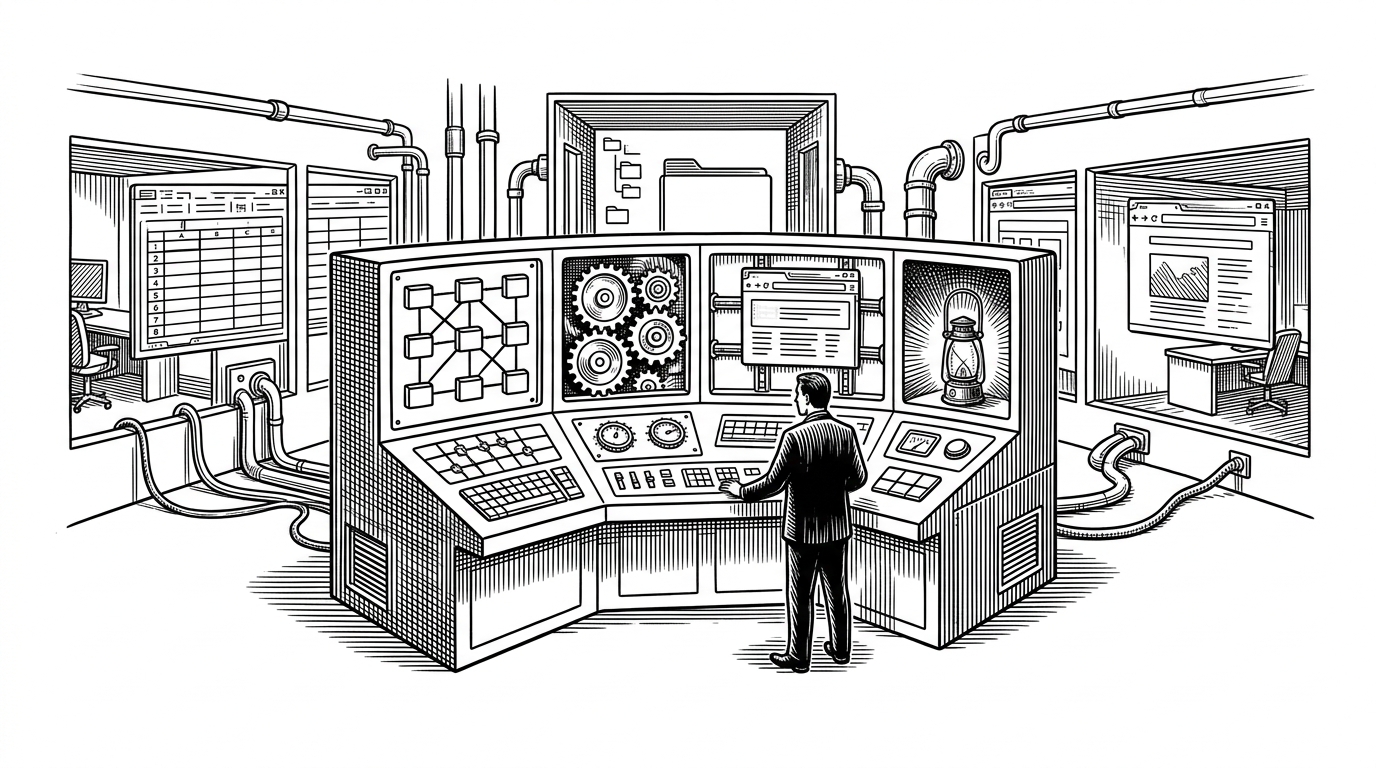
- AutoCruise CE treats Windows as a structured control surface, not a pile of screenshots, by preferring UIA, then Win32, then Playwright, then vision.
- Its main reliability trick is a strict state machine that forces the agent to observe, plan, precheck, execute, and postcheck before it can move on.
- App profiles and a constitution file push task knowledge out of the prompt and into local Markdown, which keeps the system lighter and more governable.
- The project is practical rather than pure, using PowerShell and other Windows-specific bridges wherever they reduce friction.
Windows, But Programmable
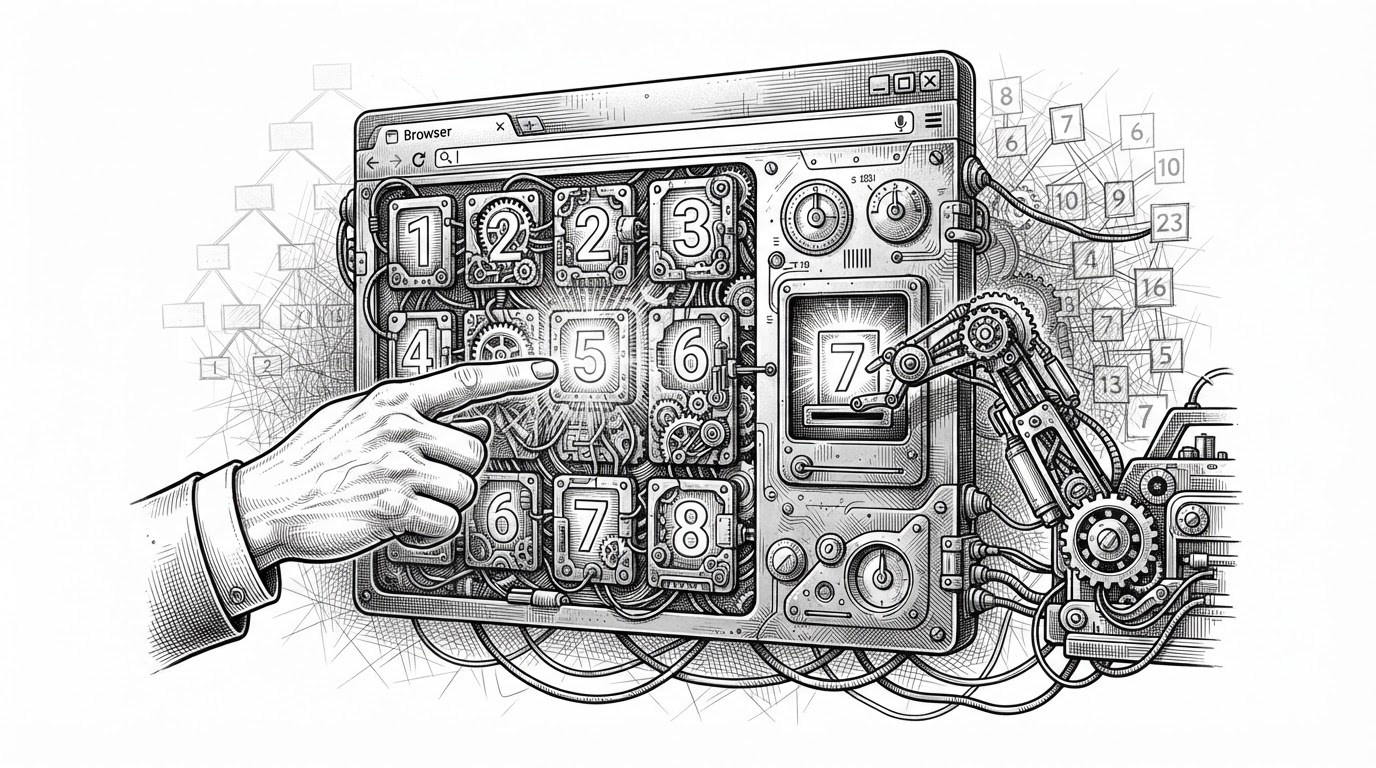
AutoCruise CE starts with a useful heresy: the Windows UI tree can be treated like an API. That sounds simple until you look at what it implies. The agent is not betting everything on screenshots, and it is not pretending every app exposes a clean automation surface.
Instead, it builds a desktop control loop around multiple signals. Structured accessibility data comes first. Win32 fills gaps. Playwright handles browser workflows. Vision sits at the end of the line, not the center of the design.
| Approach | Primary signal source | Failure mode | Best use cases | Context load | Reliability on Windows desktop apps | Maintenance burden |
|---|---|---|---|---|---|---|
| Traditional RPA | Rigid scripts and recorded UI paths | Breaks when layout or labels change | Stable enterprise flows | Low | Low on messy apps | Low at first, high over time |
| Vision-first desktop agents | Screenshots and visual reasoning | Misreads controls, misses state, can click the wrong thing | Loose, visual tasks | High | Mixed on complex Windows apps | Medium |
| AutoCruise CE | UIA, then Win32, then Playwright, then vision | More moving parts, but failures are caught earlier | Real desktop workflows with varied apps | Medium | Higher because it escalates by trust | Higher, but more intentional |
The Trust Ladder: UIA First, Vision Last
The project’s strongest idea is also its most disciplined one. It assumes that no single sensor is always right, so it orders them by trust. UIA gives structure. Win32 recovers lower-level gaps. Playwright takes over in browsers. Vision is the emergency exit when the structured layers stop being enough.
That sequence matters because desktop automation fails most often when the agent overcommits to one view of the world. A screenshot may show a button. The accessibility tree may prove it is disabled. The browser may expose a richer hook. AutoCruise CE is built to reconcile those views instead of pretending one of them is universal.
Why the State Machine Matters
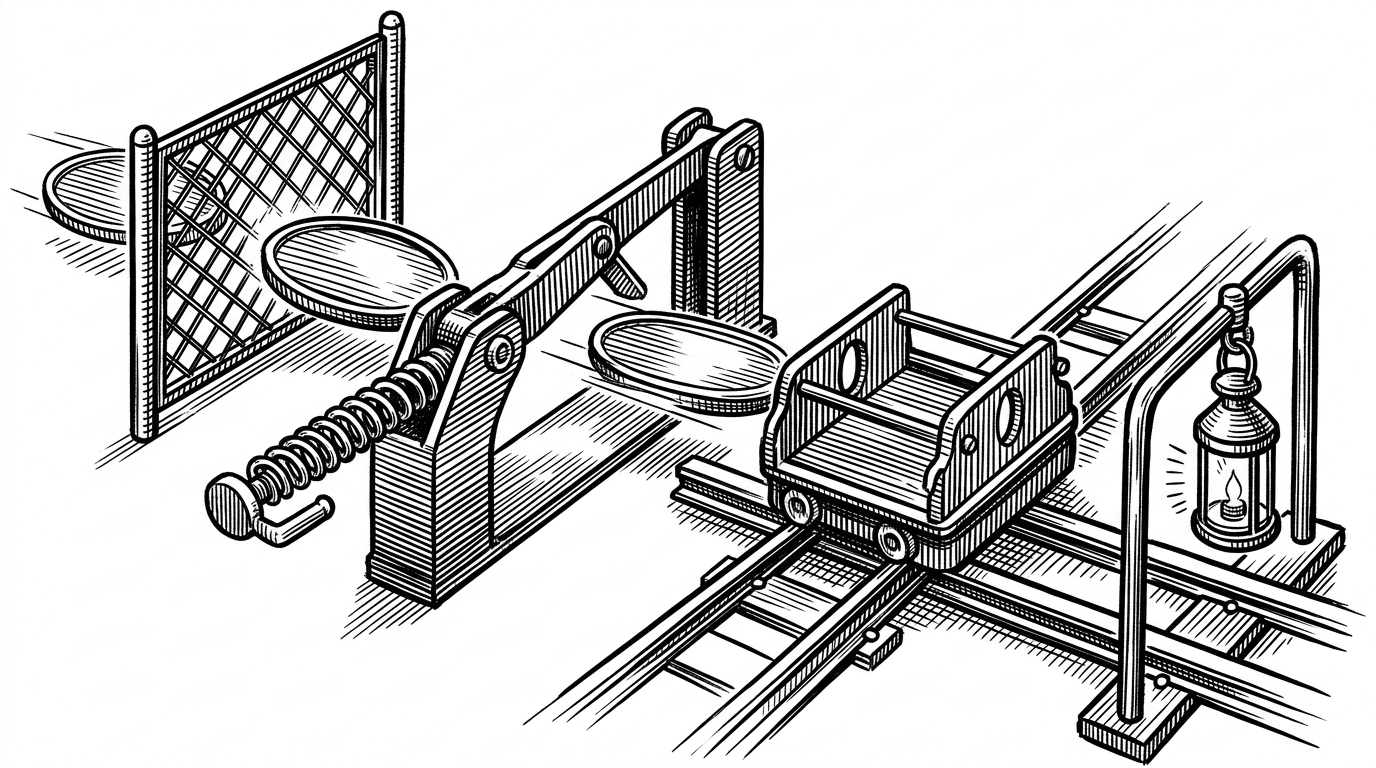
AutoCruise CE does not jump straight from perception to action. It moves through OBSERVING, PLANNING, PRECHECK, EXECUTING, and POSTCHECK. That is not ceremony. It is the guardrail that keeps the agent from acting on stale assumptions.
ALLOWED_TRANSITIONS = {
    "OBSERVING": ["PLANNING"],
    "PLANNING": ["PRECHECK"],
    "PRECHECK": ["EXECUTING"],
    "EXECUTING": ["POSTCHECK"],
    "POSTCHECK": ["OBSERVING", "PLANNING"],
}

# The point is not speed. The point is that the agent cannot skip verification.
That design gives the loop a useful kind of suspicion. If the UI changes, the precheck should catch it. If execution lands somewhere unexpected, the postcheck should catch that too. The agent is allowed to be wrong, but it is not allowed to remain wrong for long.
The Orchestrator Is the Real Product
If the state machine is the discipline, the orchestrator is the operator. `SessionOrchestrator` manages the live loop, handles pauses and stops, and decides when a failure should trigger a replan instead of a retry. That is the part of the repo that turns a demo into a working system.
The design choice that stands out is the toolset factory. It keeps policy separate from Windows-specific implementation details. That separation matters because it makes the system easier to test, easier to swap, and less fragile than a single monolithic automation layer.
| Layer | Job | Why it matters |
|---|---|---|
| Orchestrator | Coordinates the session and recovery loop | It decides when to pause, retry, replan, or stop |
| Toolset factory | Creates the concrete automation tools | It keeps high-level policy decoupled from Windows-specific plumbing |
| Planner | Turns the current context into a next action | It gives the agent a reasoned next step instead of a blind click |
How the Planner Turns Context into Action
`LiveActionPlanner` is where the current UI state becomes a prompt and then a plan. One small detail matters a lot: `CONTEXTUAL_RUN_ALIASES`. If the agent needs Excel, it can map that intent to a shortest reliable path like `excel.exe` instead of fumbling through the desktop every time.
CONTEXTUAL_RUN_ALIASES = {
    "excel": "excel.exe",
    "word": "winword.exe",
    "powerpoint": "powerpnt.exe",
}

# The shortcut is not magic. It is a practical way to launch the right app
# without wasting context on discovery.
That is a tiny design choice with a large payoff. It reduces search space, shortens task startup, and gives the planner a reliable way to bridge intent and execution. In a desktop agent, that kind of shortcut is often the difference between a useful workflow and a noisy one.
App Profiles and the Constitution
The app profile system is where AutoCruise CE becomes more than a general agent. By externalizing app knowledge into Markdown, the repo gives itself a local memory of how software behaves. The agent does not have to rediscover the same facts every session, and the model does not have to carry the entire world in context.
The constitution file pushes in the same direction. It frames the system as governed, not improvisational. That matters because desktop automation can go wrong in ways that feel mundane at first and expensive later. A local rulebook is a better default than hope.
| Mechanism | What it stores | Why it helps |
|---|---|---|
| App profile Markdown | App-specific behavior and shortcuts | Reduces prompt bloat and repeated discovery |
| Constitution | Operating rules and constraints | Keeps the agent within a declared policy |
| Task recipes | Reusable procedures | Turns one-off workflows into repeatable patterns |
Why PowerShell Sits in the Middle
This repo is not purity-driven, and that is a compliment. PowerShell appears as a bridge to deeper Windows UI Automation work because it gets the job done where Python alone would be awkward. On Windows, that pragmatism is a feature, not a compromise.
# Conceptual example of the bridge layer
# Python calls into a PowerShell UIA client when deeper Windows access is needed.

$window = Get-UiaWindow -Name "Excel"
$button = Get-UiaControl -Window $window -ControlType Button -Name "Refresh"
Invoke-UiaAction -Control $button -Action Click
For senior engineers, that reads as a sane tradeoff. Use the least bad tool for the job. Keep the system local when possible. Prefer a reliable bridge over a theoretically cleaner one that fails in practice.
What This Gets Right, and What It Will Struggle With
The architecture is robust because it is suspicious of its own inputs. That same suspicion makes it more complex to maintain. More sensors mean more reconciliation. More app profiles mean more curation. More safety checks mean more paths for failure to surface.
That is the right tradeoff if the goal is real Windows automation. It is less appealing if you want a minimalist demo or a single universal interface. AutoCruise CE is trying to survive contact with messy desktop software, and the design shows it.
| Strength | Tradeoff |
|---|---|
| Structured-first sensing | More layers to coordinate |
| Local app profiles | Manual upkeep |
| Postcheck and replanning | Slower apparent execution |
| Local-first workflow | Depends on the user’s desktop being healthy |