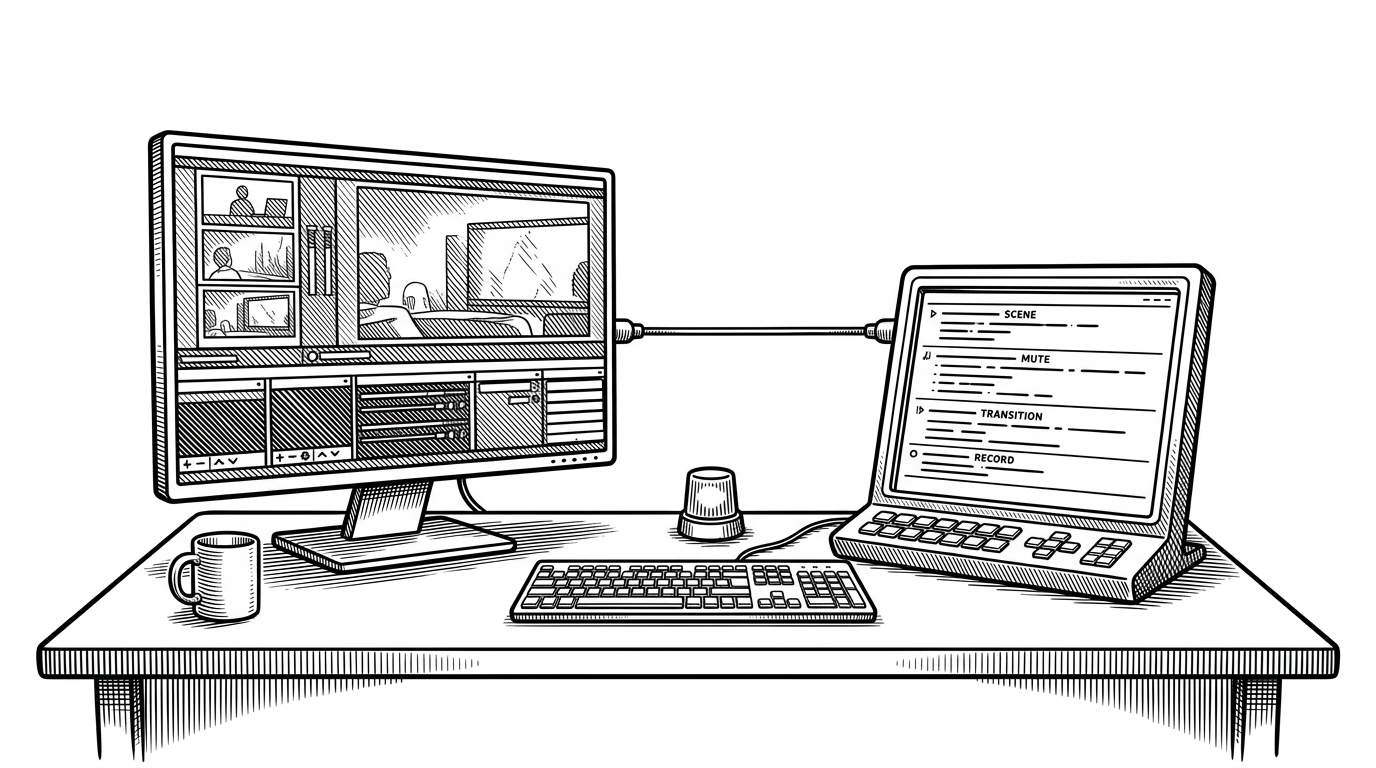
clicky-win: ClickyWin: The Windows AI Tutor That Can Point at the Screen
A spatial voice assistant that fuses live transcription, multi-monitor vision, and cursor control into one unusually teachable desktop workflow.
Generating illustration...
- ClickyWin’s real novelty is spatial guidance, not generic chat, because it can translate a response into an on-screen pointer.
- The POINT tag protocol makes the trick feel small and robust instead of magical, which is why the system can stay teachable.
- The app is built as a low-latency streaming pipeline, so speech, transcription, model output, and TTS all overlap instead of waiting in line.
- Its strongest product claim is not speed or model size, but the ability to make software feel like something an instructor can annotate live.
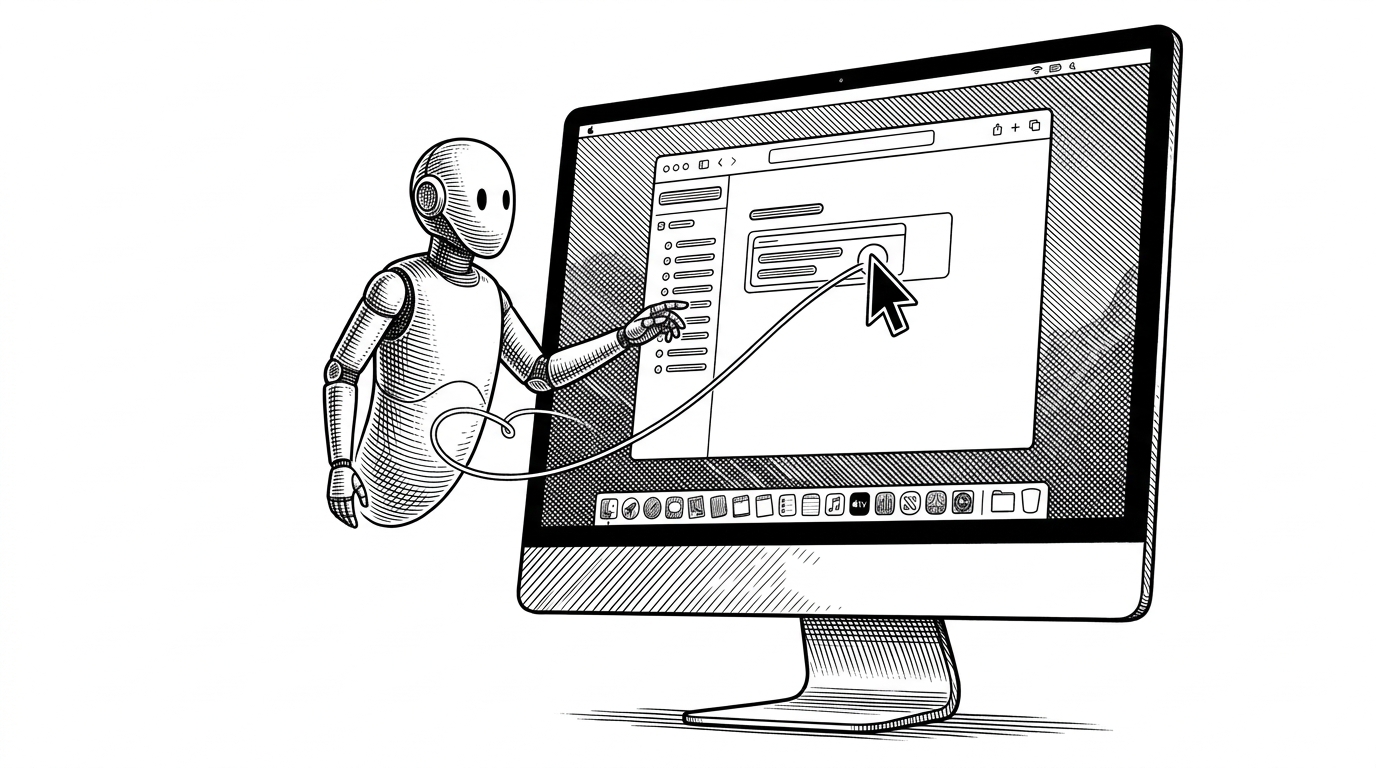
ClickyWin is not trying to be a better chatbot. It is trying to be a better way to learn software. The difference matters. A normal assistant can explain a Blender panel or a Resolve timeline, but it cannot reliably show you where to look on a crowded desktop. ClickyWin closes that gap by tying language to a physical pointer on the screen.
That makes it feel less like a text box and more like a tutor standing next to your shoulder. The app watches the screen, listens to you, and then reaches back into the UI with a cursor move or highlighted target. In other words, the answer is only complete when attention has been guided.
ClickyWin A voice-powered AI tutor for Windows that watches your screen, answers your questions, and points at what it's talking about.
Why a chatbot is not enough for learning software
Software tutorials fail for a simple reason: the user still has to locate the thing being discussed. Screens are dense. Menus collapse, panels move, and the relevant control is often one tiny affordance in a sea of visual noise. A voice assistant that cannot point leaves the hardest part to the learner.
ClickyWin is built around that missing step. It does not only answer the question. It turns the answer into a visual cue that lands on the monitor itself. That is why the project feels closer to an instructor than a copilot.
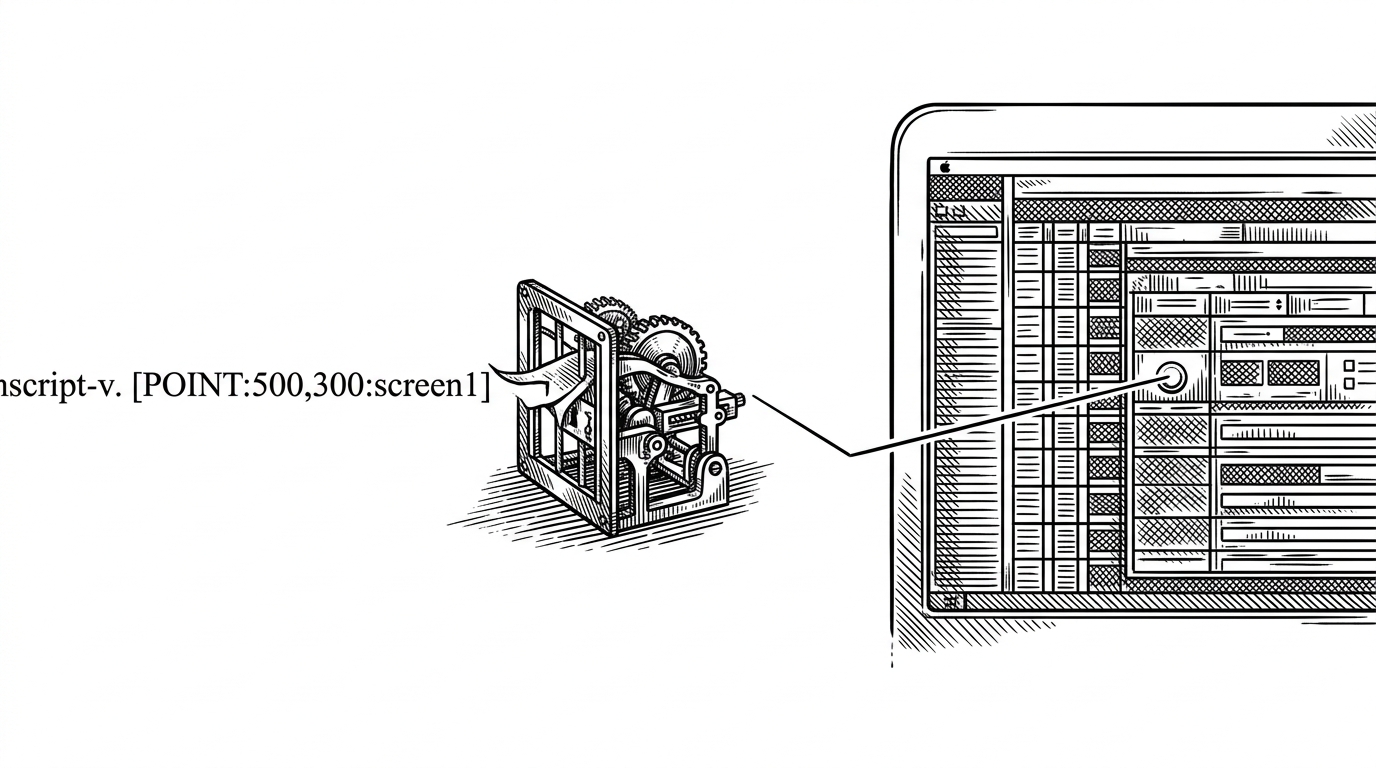
The POINT protocol turns language into cursor motion
The cleverest mechanism in the repo is also the simplest: the model appends a tag such as [POINT:500,300:screen1], the app parses it, strips it out of the spoken text, and uses those coordinates to move the pointer or widget. The model gets to speak in one channel and point in another.
# Conceptual flow from the repo
response = llm_stream.next_fragment()
text, point = parse_point_tag(response)
speak(text)
if point:
    x, y, screen = point
    mapped_x, mapped_y = point_mapper.to_global(x, y, screen)
companion_widget.move_cursor(mapped_x, mapped_y)The trick is not that the model knows geometry. The trick is that the app gives geometry a tiny, parseable contract. Once the tag exists, the rest of the system can be boring and reliable. That is a good sign in a desktop tool.
Sarah Chen might like this because it keeps the interface boundary clean. The model emits a tag, the parser owns the contract, and the cursor logic stays separate from speech rendering. That is exactly the kind of seam that survives refactors.
Jake Torres would probably call this the first part that feels fun. A model that can literally point is the kind of thing builders try once, then immediately start imagining for every desktop app they use.
How ClickyWin builds a spatial map of the screen
The repository does not just capture a screenshot. It normalizes a multi-monitor desktop into a model-friendly coordinate space, then maps that space back into real Windows pixels. That is the difference between a demo and a system that can actually land the pointer where it belongs.
The screen capture path uses mss to grab monitor data, downsample the working image to a 1280px space, and preserve metadata such as monitor offsets. The point mapper then translates the model’s coordinate output into global desktop coordinates, which is where DPI scaling and monitor topology become real product problems instead of footnotes.
For the user, this is invisible. For the system, it is the difference between saying "click there" and actually hitting the button on a second monitor.
Dr. Lena Kovacs would reasonably ask whether the mapping survives odd DPI setups. That is the right question, because spatial assistants fail first at the edges: mixed resolutions, monitor offsets, and scaled displays. The repo’s choice to carry monitor metadata is the part that suggests it was built by someone who expects those failures.
The app is really a streaming system
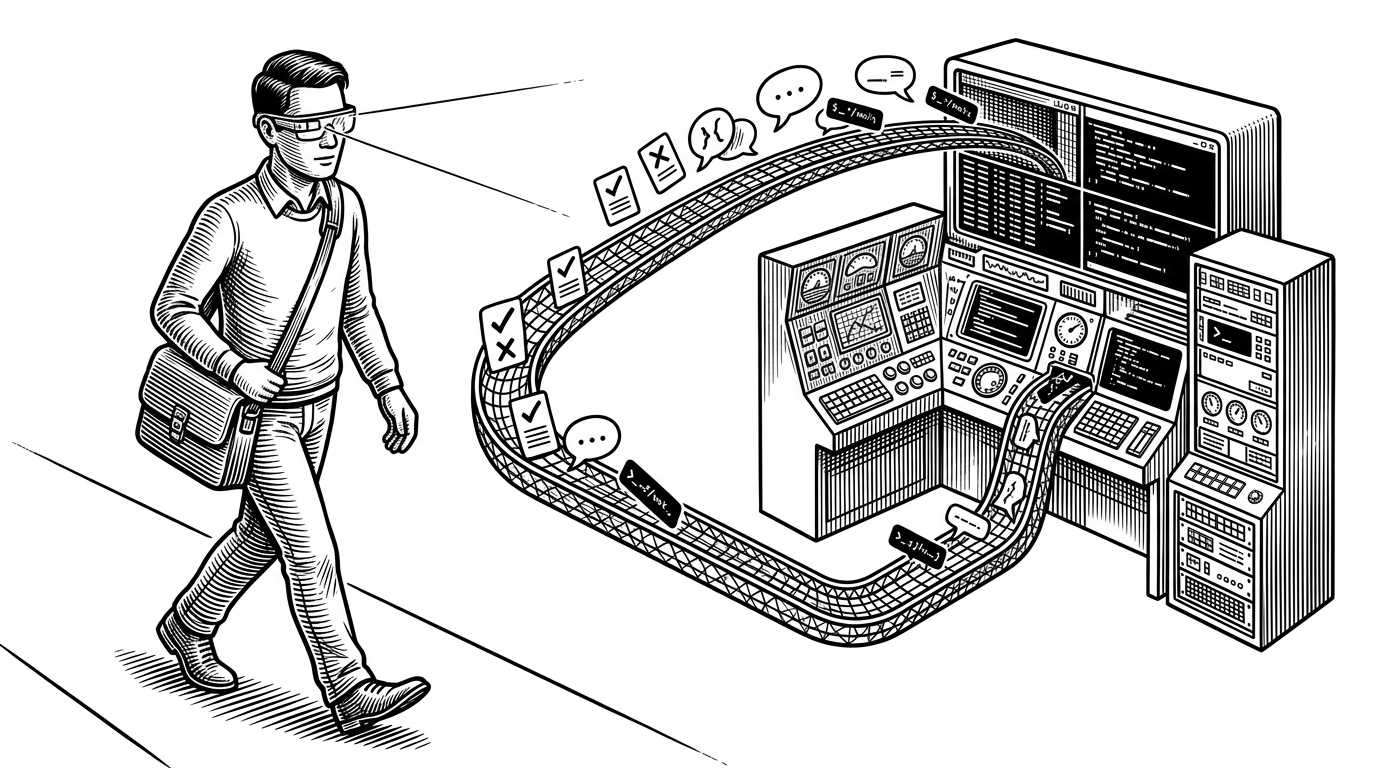
Under the hood, ClickyWin is a latency pipeline. Audio is captured in chunks, transcribed over WebSockets, the model response streams back in fragments, and TTS can begin before the full answer is complete. The whole point is to keep the assistant feeling immediate.
That is why the Qt event loop matters. With qasync, the app can stay responsive while transcription, LLM output, and speech synthesis all happen at once. A desktop tutor that hesitates feels fake. A desktop tutor that streams feels present.
# State machine shape
IDLE -> LISTENING -> THINKING -> RESPONDING

# Key idea
# Each stage starts the next I/O stream without blocking the UI loop.
The system also uses a PCM bridge pattern, which is a practical way to move raw mic data into asynchronous transcription without freezing the interface. That detail matters because the entire product depends on the feeling that voice, response, and pointer movement belong to one continuous interaction.
Sarah Chen will notice the separation of concerns. The transcription client, LLM client, and TTS path can evolve independently because the orchestrator is state-driven. That is the kind of architecture that makes fast prototypes less likely to collapse later.
Why the overlay has to disappear before the screenshot
One of the nicest details in the repo is the CaptureVisibilityController. Before the app captures the screen, it hides its own overlay so the assistant does not see itself. That sounds minor, but it is really a product decision about self-awareness.
The same state machine that tracks IDLE, LISTENING, THINKING, and RESPONDING also coordinates visibility. That keeps the capture clean and prevents the UI from polluting the very scene it is trying to interpret. It is a small loop, but it shows discipline.
Priya Patel would probably care about this most. Interfaces feel trustworthy when they know when to get out of the way. Hiding the overlay before capture is not just technical hygiene. It is good interaction design.
Dynamic RAG makes the tutor context-aware
ClickyWin becomes more useful when it knows what app you are in. The knowledge base layer checks the active window title, matches it to app-specific metadata, and injects relevant Markdown into the prompt. That is retrieval-augmented generation tuned for desktop learning rather than generic search.
| Mode | What it knows | What it can do | Why it matters |
|---|---|---|---|
| Generic assistant | Broad public knowledge | Explain in text or speech | Still leaves the user to find the right control |
| ClickyWin with active-window context | App-specific docs and UI notes | Explain and point inside the current workflow | Turns software into a guided lesson |
| Static tutorial | Pre-recorded steps | Demonstrate a fixed path | Cannot adapt to the user’s exact screen |
This is where the product crosses from assistant to tutor. It is no longer only reacting to your words. It is reacting to the app in front of you.
Amara Osei would likely see the business logic immediately. Context injection turns a general helper into a tool with a sharper use case. That is how a small desktop product earns a reason to exist.
Marcus Rivera would ask who this is for. The answer is clear: people learning dense software, where the bottleneck is not knowledge alone but orientation. That is a narrow enough wedge to be real.
What ClickyWin is really competing with
ClickyWin is not competing with auto-clickers. It is competing with the way people learn software today. The real alternatives are generic voice assistants, static video tutorials, and plain desktop copilots that help with text but stop short of embodied guidance.
| Option | Strength | Weakness | What ClickyWin adds |
|---|---|---|---|
| Generic chatbot | Fast explanations | No screen awareness | It can point at the control |
| Video tutorial | Visual demonstration | Linear and passive | It adapts to the user’s current app |
| Plain desktop copilot | Useful text help | Limited spatial guidance | It closes the loop between answer and action |
| ClickyWin | Spatial tutoring | Still early and specialized | It makes the desktop teachable |
The comparison is not about raw intelligence. It is about interaction design. ClickyWin’s edge is that it turns an answer into attention, and attention into motion.
What the architecture says about the product
The stack choices line up with the thesis. PySide6 and qasync give the app a native-feeling shell. mss and websockets keep the data flow fast. A Cloudflare Worker proxy protects the sensitive API keys. PyInstaller turns the whole thing into a desktop package instead of a dev project.
That is a lot of engineering for what could have been a simple voice bot. But the architecture makes sense once you accept the product goal: teach software in real time, on Windows, with low latency and spatial feedback.
The most interesting open-source desktop tools often look small from the outside and carefully layered from the inside. ClickyWin fits that pattern. It is a tutor, but it is also a systems demo with a point of view.
Jay Smith’s project reads like a proof that desktop AI does not have to stay abstract. Once speech, vision, and pointer control live in the same loop, the machine stops answering from a distance and starts participating in the workflow.
ClickyWin is a Windows port of Farza's Clicky â the open-source AI companion that lives next to your cursor.